

Tasks
A task is one piece of work inside a project — a feature, a bug, or a chore. It’s the heart of Retask: a task isn’t just a note, it’s something you can hand to a teammate or to an AI Agent, and it stays as the durable record of that work.
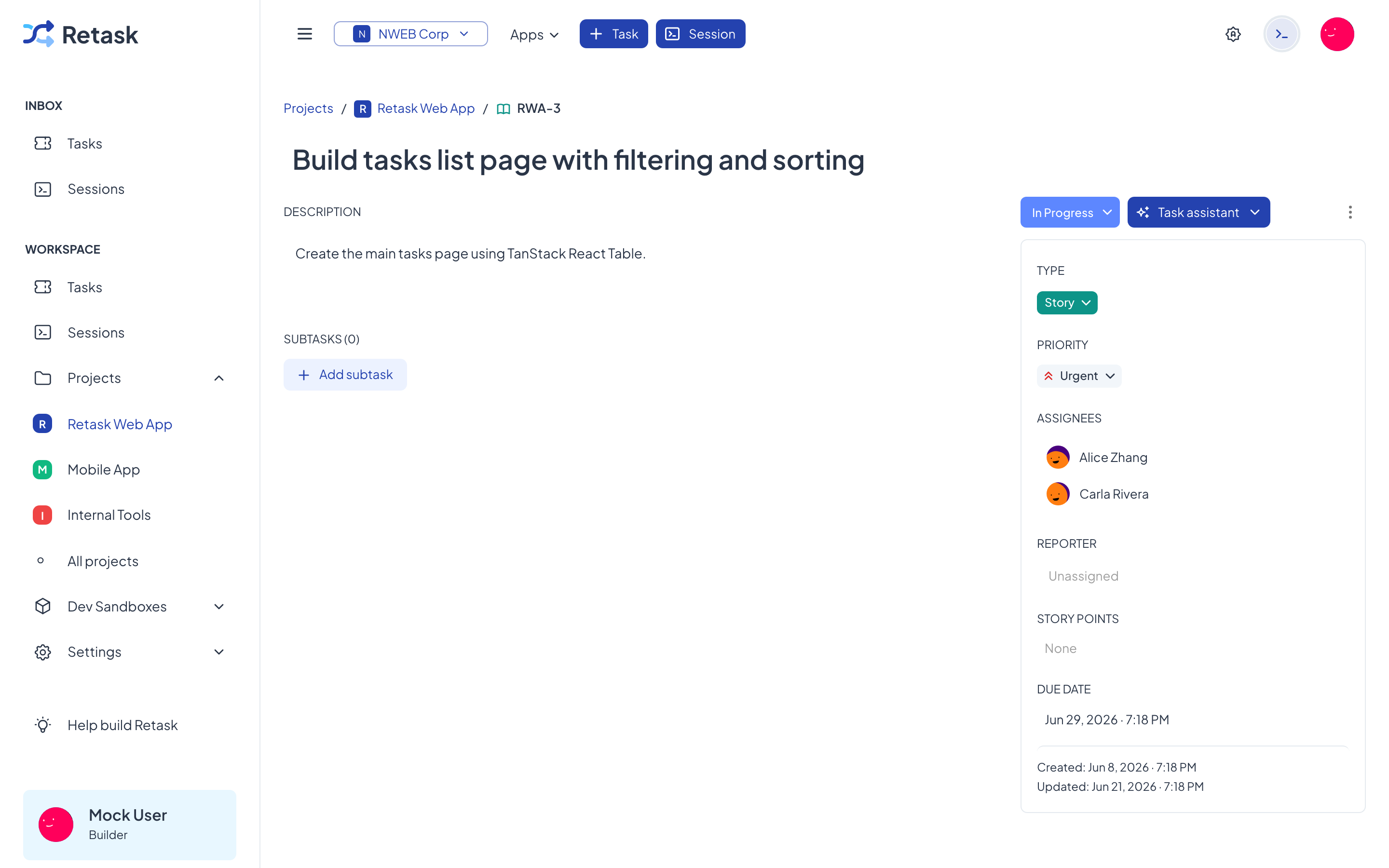
Every task has a short key like RWA-3 (the project prefix plus a number) so
anyone can refer to it unambiguously.
Anatomy of a task
Section titled “Anatomy of a task”Open any task to see its detail page. A task carries:
- Title — a short summary of the work.
- Description — the details, context, and what “done” looks like.
- Status — where it is in the workflow (Todo, In Progress, In Review, Done…).
- Priority — Urgent, High, Medium, or Low.
- Type — the kind of work, e.g. Story, Bug, or Task.
- Assignees — the people or agents responsible. A task can have more than one.
- Reporter — who raised it.
- Due date — an optional deadline.
- Subtasks — smaller checklist items that break the work down.
- Attachments — files related to the task.
Create a task
Section titled “Create a task”Click + Task at the top of the app (or + Add task in any Kanban column). Fill in a title and description, set the status, priority, and type, pick assignees, and optionally a due date. Save, and it lands on the board.
retask task create \ --project-id <id> \ --title "Fix login bug" \ --description "Users see a blank screen when their token expires" \ --priority HIGHAssign a task
Section titled “Assign a task”Set one or more assignees to say who’s responsible. Assignees can be human members or AI Agents — both appear in the same picker.
To actually put an AI Agent to work on a task, open the task and use the Task assistant menu — choose Plan this task or Process this task. This is what makes Retask different from an ordinary task tracker; the full flow is in Run an AI Agent on a task.
Track and find tasks
Section titled “Track and find tasks”There are two main ways to view tasks:
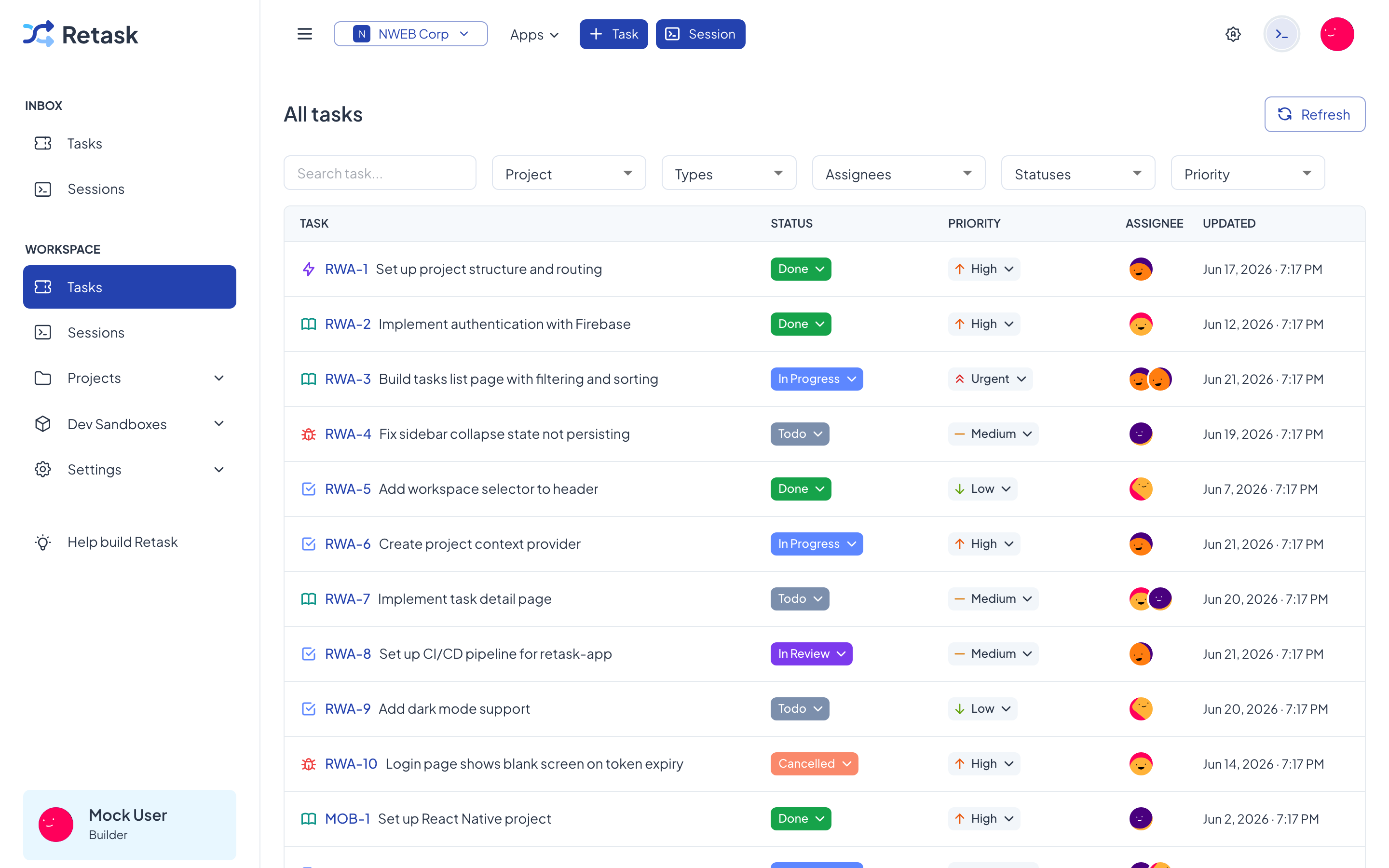
- The All tasks view (and each project’s Tasks tab) lists tasks as rows you can sort and filter.
- The project Kanban board shows tasks as cards grouped by status.
Both views share the same filters across the top — narrow by project, type, assignee, status, and priority, or type into the search box to find a task by title or key.
Drag a card between Kanban columns to change status, or change status, priority, and assignee inline right from the list.
# List urgent tasks assigned to a specific memberretask task list --priority URGENT --assignee nweb:workspace:member:<uuid>
# Look up a task by its keyretask task get-by-key RWA-3
# Move a task forward (only the flags you set change)retask task update <id> --status <status-id> --priority HIGH
Subtasks and attachments
Section titled “Subtasks and attachments”Break larger work into subtasks — a checklist on the task detail page — so progress is easy to see. Attach files (designs, logs, specs) to keep everything related to the work in one place.