

Sandboxes
A sandbox is an isolated environment where Retask agents do their work — think of it as a private computer for the agent, walled off so your code and credentials are never shared between workspaces. A sandbox template is the reusable recipe a sandbox is built from.
You’ll find both under Dev Sandboxes in the sidebar, split into Sandboxes and Templates.
The usual order is: build a template once, then spin up sandboxes from it whenever agents need to run.
Sandbox templates
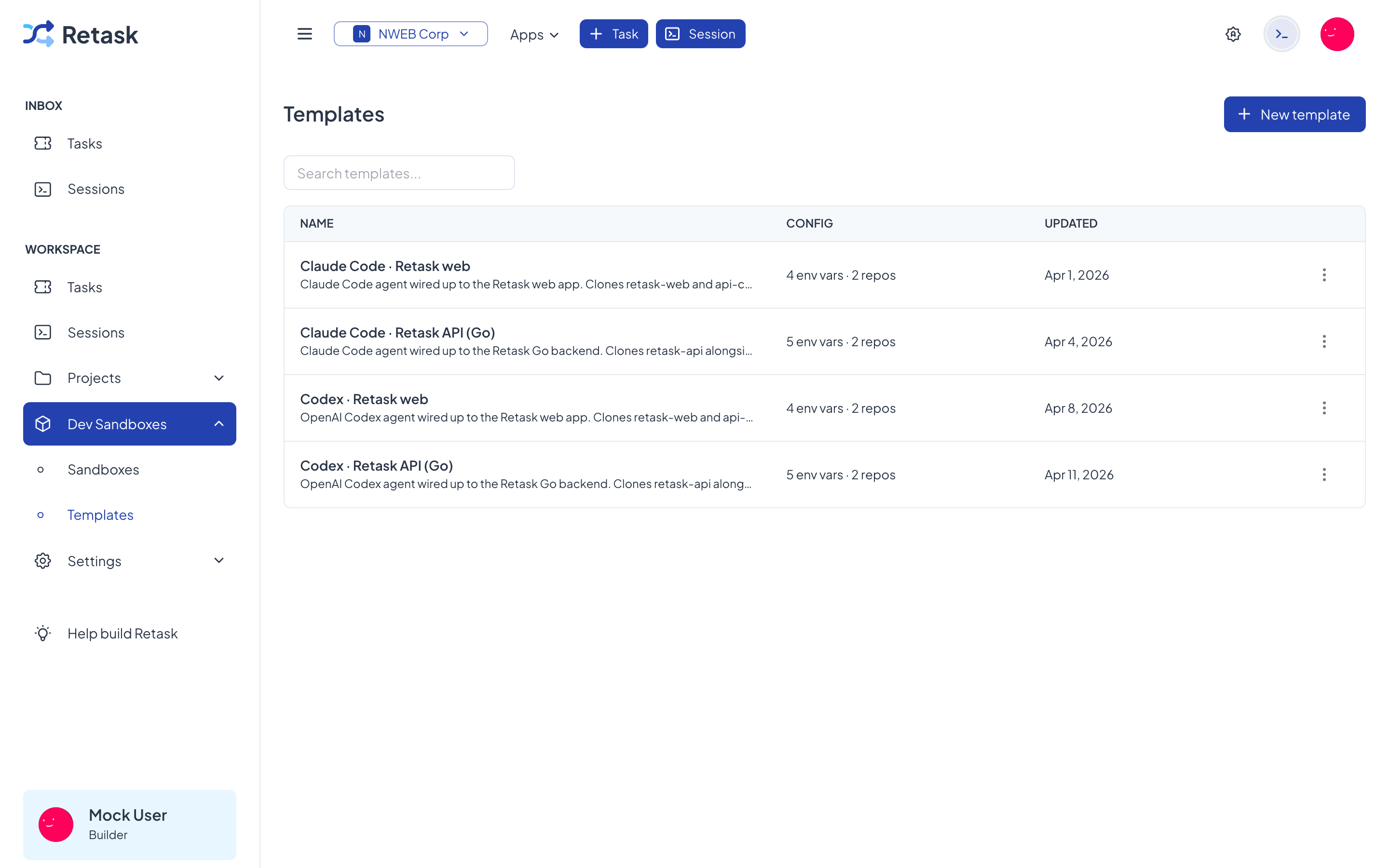
Section titled “Sandbox templates”A template captures everything an agent’s environment needs, so every sandbox built from it starts out identical and predictable. A template defines:
- Repositories — the code to clone into the environment.
- Environment variables and secrets — API keys, tokens, and config the agent needs (for example, an Anthropic or OpenAI key).
- Startup steps — what to install and run, and how to launch the agent.
In the sample workspace, templates like “Claude Code · Retask web” clone two repositories, install dependencies, generate code, and launch the agent ready to work.
Create a template
Section titled “Create a template”-
Go to Dev Sandboxes → Templates and click New template.
-
Give it a descriptive name (for example, the AI plus the project it targets).
-
Add the repositories the agent should work on.
-
Add the environment variables and secrets it needs. Connect providers like GitHub, Anthropic, and OpenAI first under Integrations so the right credentials are available.
-
Define the startup steps that prepare the environment and launch the agent.
Sandboxes
Section titled “Sandboxes”A sandbox is a live environment created from a template. Each one shows its status (Running, Ready, Idle, or Stopped), whether it’s shared, and how many sessions it’s hosting. A single sandbox can run several sessions at once.
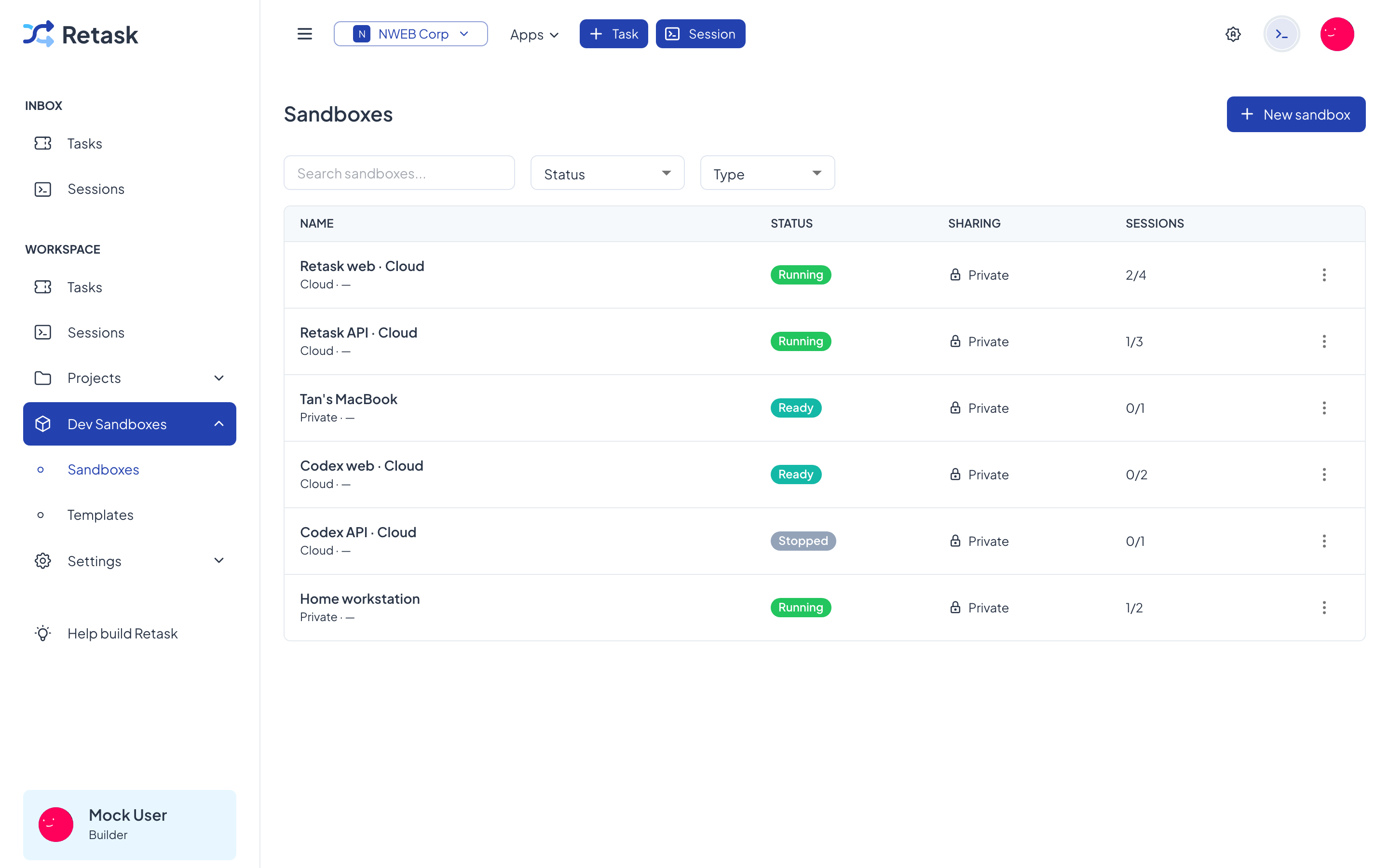
Retask supports two kinds of sandbox:
Cloud sandboxes
Section titled “Cloud sandboxes”Created and managed for you by Retask. Pick a template and the platform provisions the environment — nothing to install on your side.
Go to Dev Sandboxes → Sandboxes, click New sandbox, choose Cloud, and pick the template to build from.
retask sandbox create --name my-sandbox --type CLOUD --template-id <template-id>Credential modes (Cloud only)
Section titled “Credential modes (Cloud only)”When a Cloud sandbox runs, it needs the secrets from your integrations (API keys, tokens). The credential mode controls how those secrets are handed to the agent. This setting applies to Cloud sandboxes only — it does not apply to Private VMs.
Secured with Proxy (recommended)
Section titled “Secured with Proxy (recommended)”Inside the sandbox, each credential is set to a harmless placeholder value so programs can still start normally. When the sandbox makes an outbound HTTPS call to the matching API domain, Retask’s proxy transparently replaces the placeholder with the real credential — so the AI agent itself never sees your actual secret.
Placeholders are swapped for the real value only when calling these domains:
| Credential | Used for |
|---|---|
ANTHROPIC_API_KEY |
api.anthropic.com |
OPENAI_API_KEY |
api.openai.com |
GH_TOKEN, GITHUB_TOKEN |
github.com, gist.github.com, api.github.com, uploads.github.com, raw.githubusercontent.com |
NWEB_API_TOKEN |
api.nweb.app |
Passthrough
Section titled “Passthrough”Credentials are pushed directly into the sandbox’s process environment as their real values. The AI agent can read them — which makes this mode vulnerable to prompt-injection attacks that trick the agent into leaking or misusing your credentials. Use it only if you route requests through a non-canonical host (a custom LLM gateway, or GitHub Enterprise).
Private VM
Section titled “Private VM”A Private VM is your own machine — a laptop, a workstation, a VM you rent — connected to Retask with the CLI so your whole team, agents included, can run sessions on it. Because the work runs on hardware you control, it uses the AI tools already installed and signed in there, and reaches whatever that machine reaches: a VPN, internal services, local hardware.
Connect a Private VM → — setup, sharing, what the machine’s owner can see, and how a session starts.
Manage sandboxes
Section titled “Manage sandboxes”Sandboxes can be stopped to free up resources and started again later, or deleted when you’re done.
Use the sandbox actions menu next to a sandbox to stop, rename, or delete it.
retask sandbox listretask sandbox stop <sandbox-id>retask sandbox delete <sandbox-id>