

Sessions
A session is one individual run of an agent inside a sandbox — a single attempt at some work. If the sandbox is the agent’s computer, a session is one work session at that computer.
The thing that makes sessions useful: each one has a live terminal you can watch in real time. You see exactly what the agent is doing as it does it, and the session is kept afterward as a record you can review.
Session status
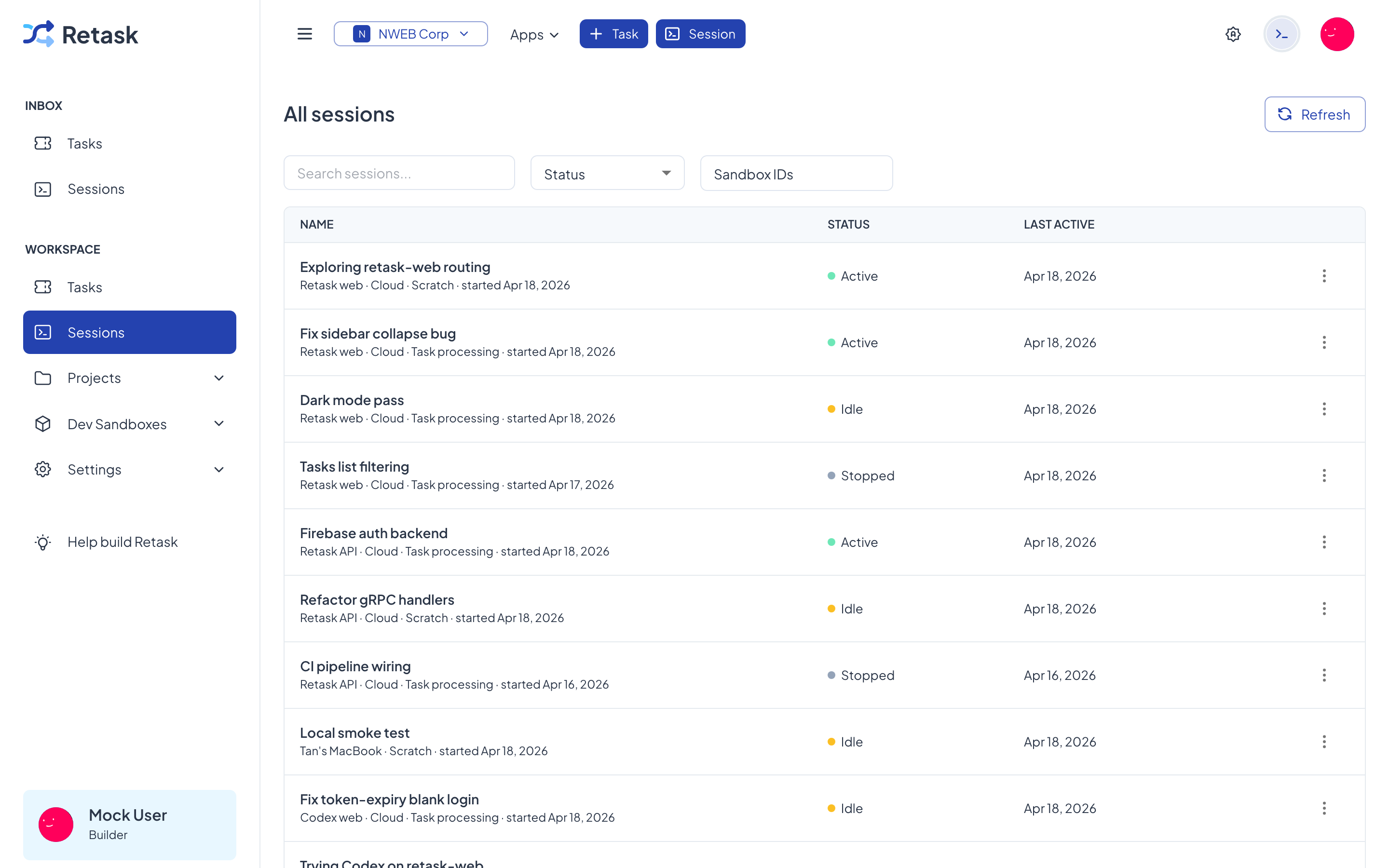
Section titled “Session status”Open Sessions in the sidebar to see them all. Each session shows which sandbox it’s running in and its current state:
- Active — running right now.
- Idle — alive but waiting (for example, between steps or for input).
- Stopped — finished or manually ended.
You can filter the list by status or by sandbox to find the run you care about.
Watch a session
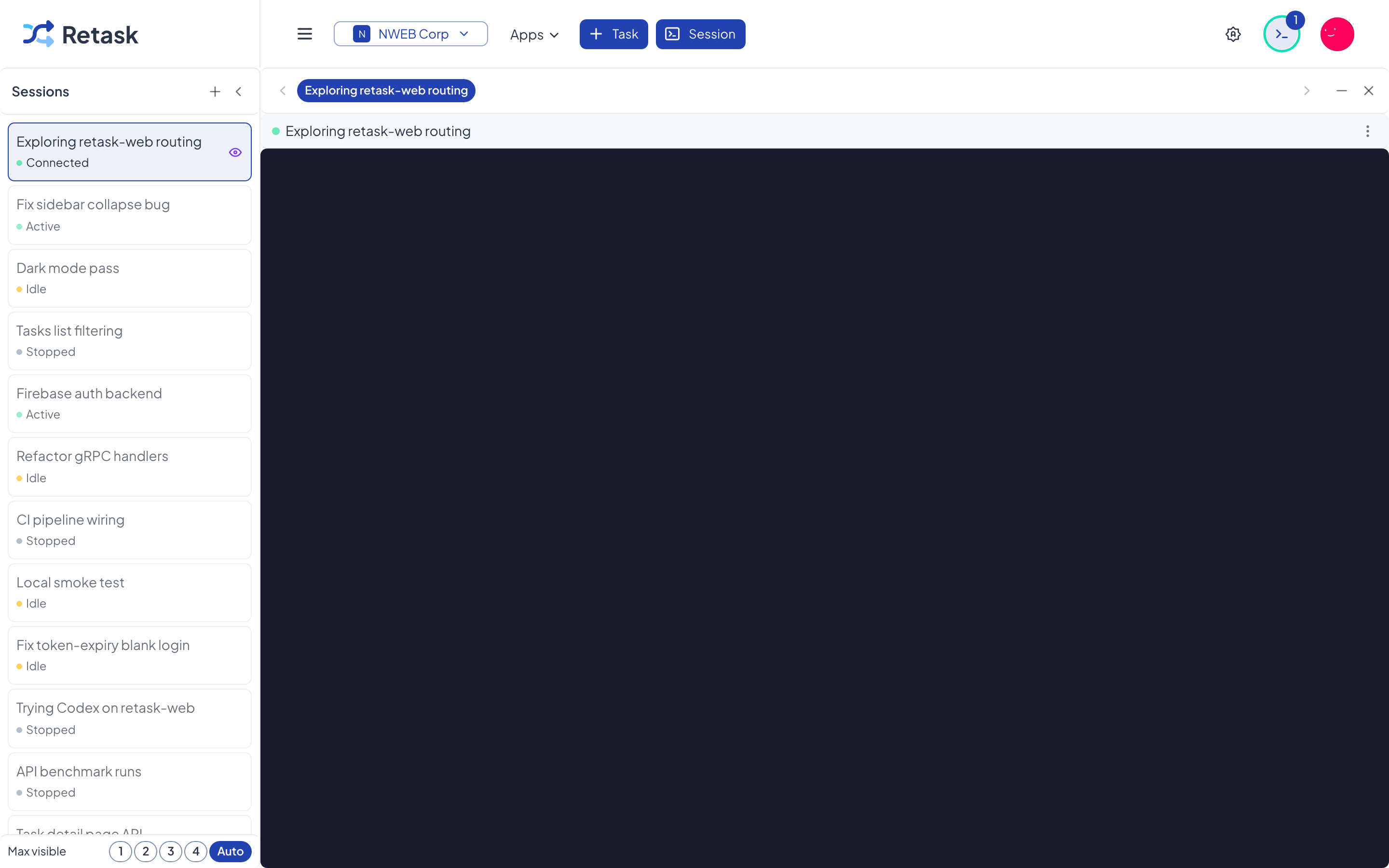
Section titled “Watch a session”Click a session to open its live terminal. Here you can follow the agent’s output line by line, see the commands it runs, and step in if it needs a nudge. Because the transcript is kept, you can reopen a finished session later to review what happened.
Start a session
Section titled “Start a session”Most of the time a session starts automatically when you assign a task to an AI Agent (see Run an AI Agent on a task). You can also start one yourself against a sandbox — handy for exploratory or one-off work.
A session can be seeded with a starting point so the agent knows what to do the moment it begins:
- Seed prompt — a plain-text instruction, like “fix the failing tests”.
- Seed task — a link to a task, so the agent works from that task’s details.
Click Session at the top of the app (or New session from the Sessions view), choose the sandbox to run in, and give it a starting prompt or task.
# Start a session against a sandboxretask sandbox session create --sandbox-id <sandbox-id>
# Seed it with a prompt or a task (NRN)retask sandbox session update <id> --seed-prompt "Fix the failing tests"
# List or stop sessionsretask sandbox session list --sandbox-id <sandbox-id>retask sandbox session stop <session-id>