

Projects
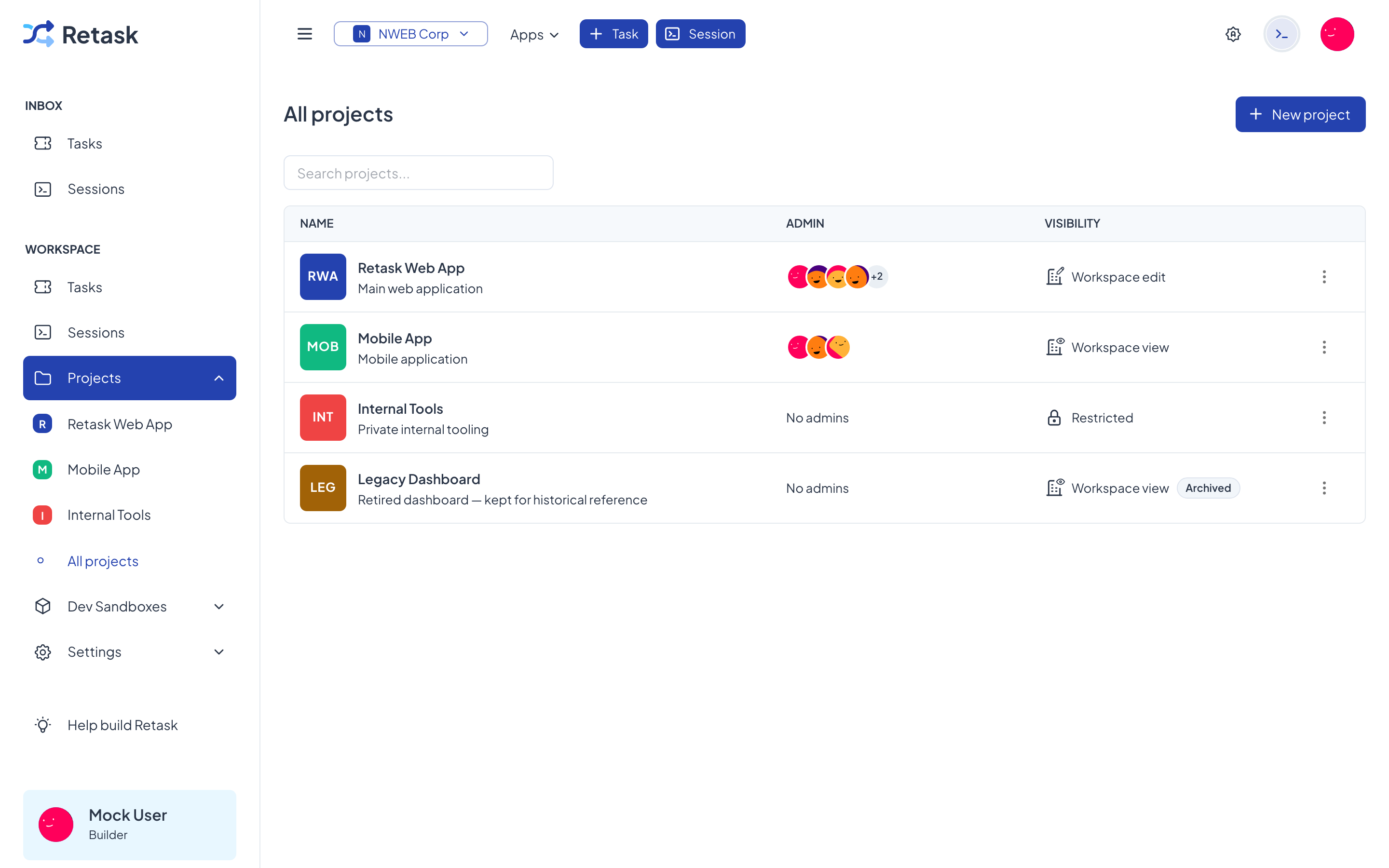
A project groups related tasks together — usually one project per app, service, or area of work. Each project has its own board, its own set of statuses, and its own members. In the sample workspace, “Retask Web App”, “Mobile App”, and “Internal Tools” are each separate projects.
Create a project
Section titled “Create a project”Open Projects in the sidebar and click New project. Give it a name, and optionally a color, icon, and visibility. You’ll land on an empty Kanban board, ready for tasks.
retask project create --name "Backend" --visibility VISIBILITY_WORKSPACE_EDITVisibility
Section titled “Visibility”Visibility controls who in the workspace can see and touch the project:
- Workspace edit — everyone in the workspace can view and change it.
- Workspace view — everyone can see it, but only its members can change it.
- Restricted — only people you add as project members can see it at all.
The Kanban board
Section titled “The Kanban board”A project opens to a Kanban board — columns that tasks move through from left to right as work progresses. The sample columns are Todo, In Progress, In Preview, and Done, and each column shows how many tasks it holds.
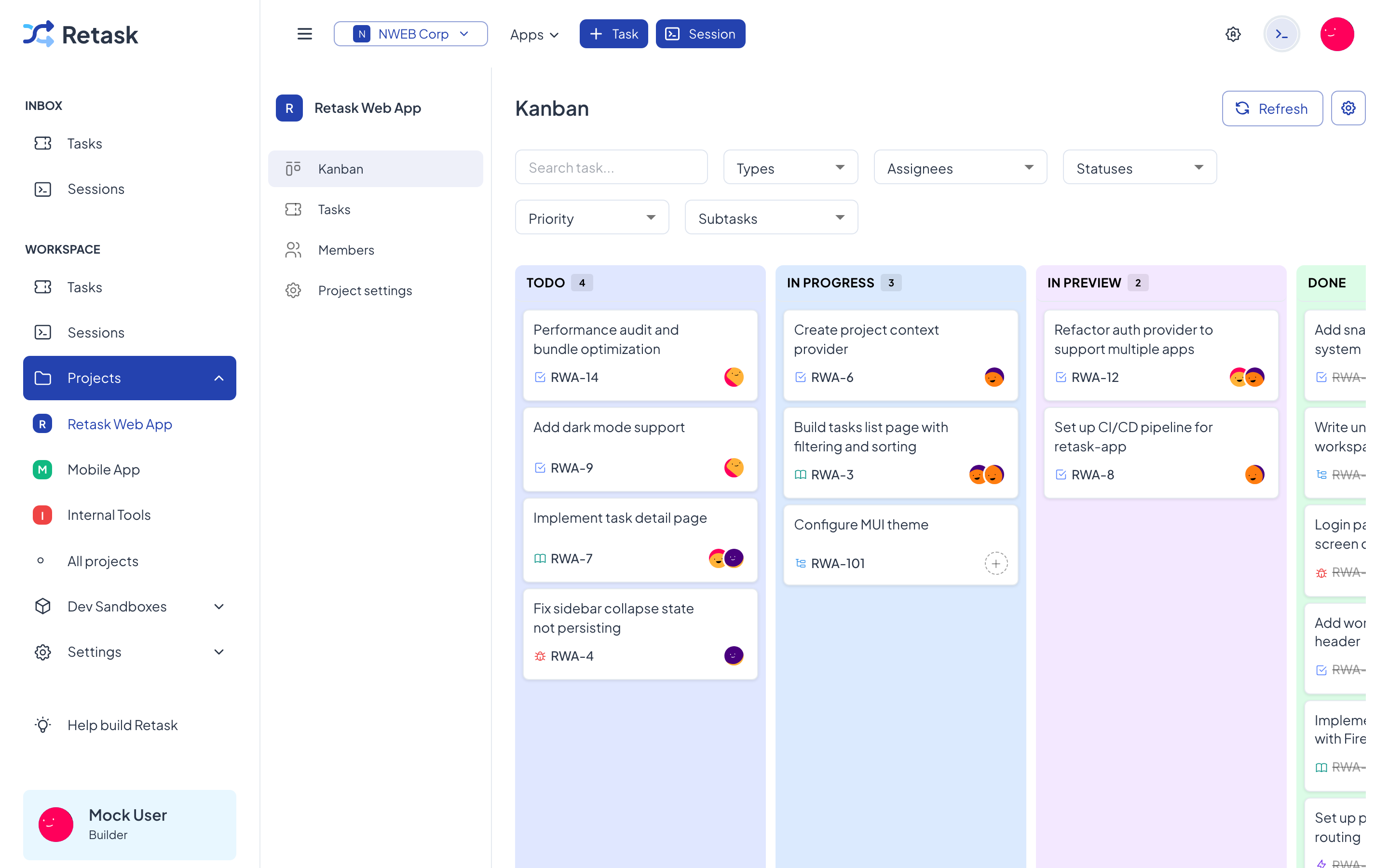
Drag a task card from one column to the next to update its status, or use the filters at the top to narrow the board by type, assignee, status, or priority. Click + Add task at the bottom of any column to create a task directly in that status.
Project tabs
Section titled “Project tabs”Inside a project you’ll find a few tabs:
- Kanban — the board described above.
- Tasks — the same tasks as a sortable list.
- Members — who can work on this project, and their project role.
- Project settings — name, color, icon, visibility, and statuses.
Members
Section titled “Members”Even in a workspace-wide project, you can give specific people a project role. Add a workspace member to the project and choose their role (for example, an editor who can change tasks here). Removing someone from the project doesn’t remove them from the workspace.
Archiving vs. deleting
Section titled “Archiving vs. deleting”When a project is finished, you have two options:
- Archive — hides it from the active list but keeps everything. You can unarchive it any time. This is the safe default for wrapping up work. In the sample workspace, “Legacy Dashboard” is an archived project.
- Delete — permanently removes the project and its tasks. This can’t be undone.
Use the project actions menu (next to a project in the list) to archive, unarchive, or delete.
retask project archive <project-id>retask project unarchive <project-id>